Use the AI Formula Assistant to write new formulas, fix errors in formulas and understand what a formula does. It works from the formula bar in your workbook. Describe what you want to calculate in plain language, and the assistant suggests the right formula.
Use the AI Formula Assistant
You can write, fix or explain a formula.
Write a new formula
- Open a workbook in the Analytics tab and select a cell where you want to add a formula.
- Select the formula bar. The AI Formula Assistant panel opens.
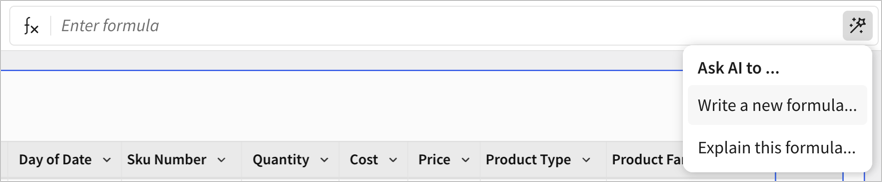
- Describe the calculation you need in plain language, and select Write formula.
![Formula assistant with a prompt to write a formula to calculate gross profit margin with revenue and COGS and a formula response of If([REVENUE] = 0 or IsNull([REVENUE]) or IsNull([COGS]), Null, ([REVENUE] - [COGS]) / [REVENUE])](https://files.readme.io/c928a8816748ffdddb64652efb4d0d16a4b8050bd0ec07b754523bdb8c3c70db-ai-write-new-formula2.png)
- The assistant suggests a formula. Review it, and select Use formula to add it to the cell.
Fix an error in a formula
- Select a cell with a formula that contains an error.
- Select the formula bar to open the AI Formula Assistant panel.
- Select Correct this formula.
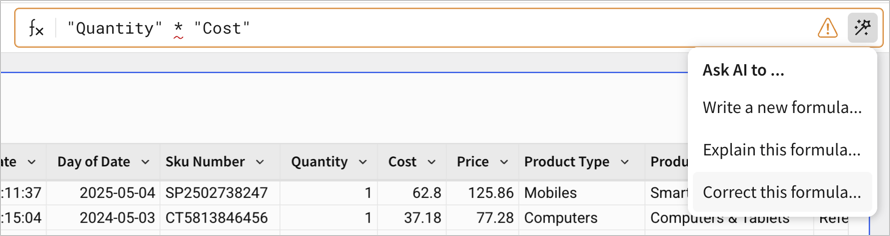
- The assistant finds the problem and suggests corrected formulas. Select Apply to update the cell.
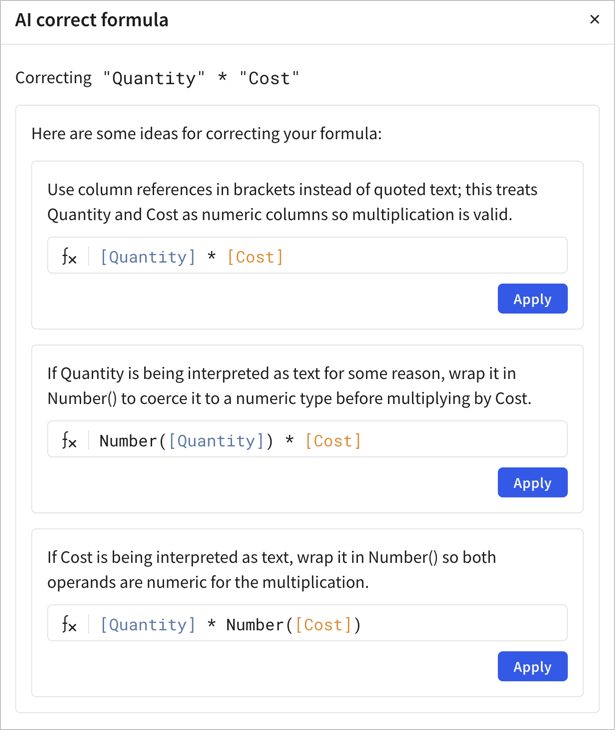
Explain a formula
- Select any cell that contains a formula.
- Select the formula bar to open the AI Formula Assistant panel.
- Select Explain this formula.
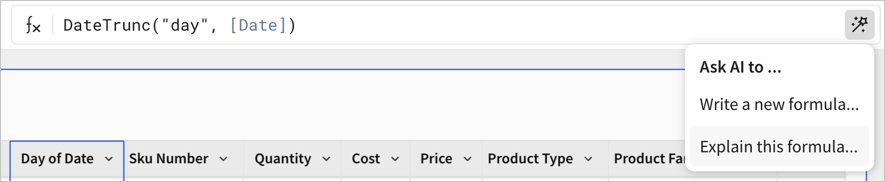
- The assistant shows a plain-language explanation of what the formula does.
![AI explain formula for "DateTrunc('day', [Date] formula, with the explanation: "the date in the column date, trimmed down to the day.")](https://files.readme.io/3bb5ee44afc6df06c3d33c4fa2f9abefc37dd7f89d10ff6c14a73a166bee494a-ai-explain.png)
What the AI Formula Assistant can do
The AI Formula Assistant can:
- Write new formulas from a plain-language description
- Identify and correct errors in existing formulas
- Explain what any formula does in plain language
- Work with all formula types in Robin workbooks
Availability and permissions
The AI Formula Assistant is available only to Advanced Analytics users with edit privileges. Only users in this group see the assistant panel in the formula bar. If you do not see the panel, ask your Robin admin to confirm your access level.
Related articles
To learn more about Advanced Analytics and custom dashboards, see these articles:
To learn how to use AI with formulas in Robin custom dashboards, see Sigma's article Use AI with Formulas.